
Troubleshooting Your FTMS Connection
If your fitness machine connects to the ErgZone app but no data appears (e.g., your pace, power, or stroke rate stays at zero) once you start moving, we need to run a diagnostic test.
This guide will show you how to use our FTMS troubleshooting tool, so our team can identify the protocol issue and fix it.
1. Request Access
The diagnostic tool is located within the ErgZone Web Admin. While this requires an ErgZone+ membership, we offer free access for troubleshooting.
- Contact Us: Send a quick message to support@erg.zone.
- What to say: "I need to use the FTMS troubleshooting tool for my [Machine Brand/Model]."
- Wait for Confirmation: Our team will manually grant your account access so you can log in without a paid subscription.
2. Prepare Your Equipment
Before opening the tool, ensure both your device and your ergometer are ready to communicate:
- On Your Ergometer/Machine: Ensure Bluetooth is enabled on the console.
- Note: Some machines require you to press a "Connect" button or select "ANT+/Bluetooth" in the menu to make the machine "discoverable."
- On Your Computer/Tablet: Enable Bluetooth in your system settings.
- Disconnect Other Apps: Ensure no other fitness apps (like Zwift, a heart rate monitor, or a tablet) are currently connected to your machine. Bluetooth usually only allows one active connection at a time.
3. Access the Tool
Once our team confirms your access:
- Navigate to the Tool: Visit https://admin.erg.zone/.
- Sign In: Log in with your ErgZone credentials.
-
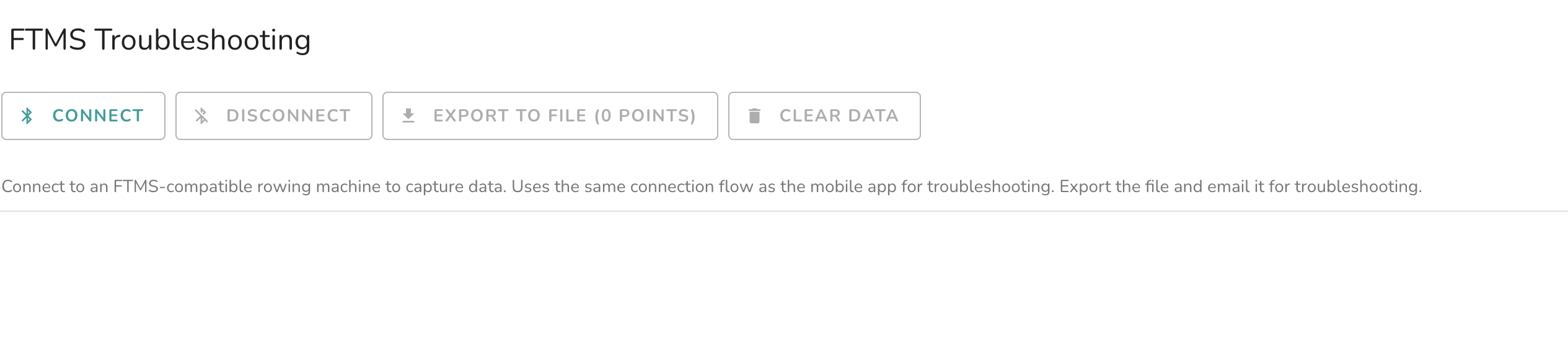
Click "Connect": Click the blue Connect button on the dashboard.
-
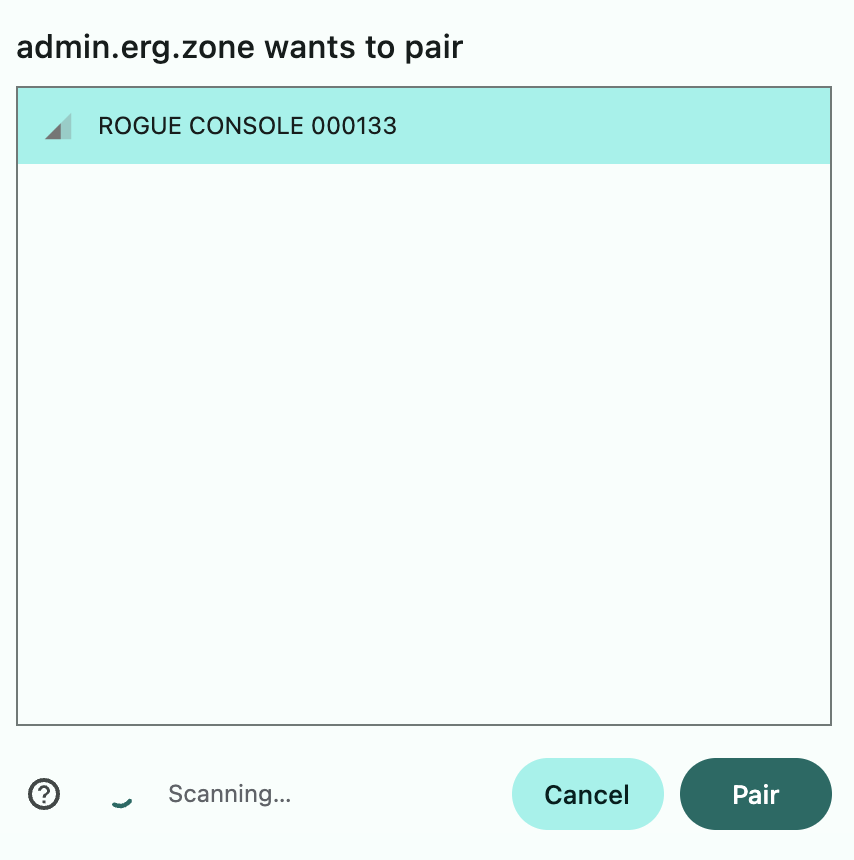
Select Your Machine: A list of nearby Bluetooth devices will appear. Select your ergometer from the list.
- Start Moving: Begin your workout as you normally would.
- Check the Stream: Even if the numbers on the screen stay at zero, continue for at least 30 seconds. The tool is recording the background communication between the troubleshooting tool and your ergometer.

5. Export Diagnostic Data & Send to Support
- Export to File: Click the Export to File button to download the log.
- Email the downloaded file to support@erg.zone. Please include:
- The brand and model of your machine.
- The type of device you used for the test (e.g., MacBook, Windows Laptop, Android Tablet, etc.).
See it in Action
To help you visualize the process, watch this short video showing how to connect, move, and export your data using the troubleshooting tool: Troubleshooting ErgZone FTMS Connection Issues