
Rowers Choice: 2000M Standings

This article will explain using the ErgZone app to submit your 2K time or row a 2K.
When you use the ErgZone app for rowing a 2k, it will set up the workout on the PM5, collect the data in real time, and automatically upload your result to the Leaderboard.
To get started, please join the 2000m Standings on ErgZone.
Join the 2000M Standings
-
Visit: https://www.erg.zone/join?id=j9vXE0MtQJ6h1iEJ_BPdrg
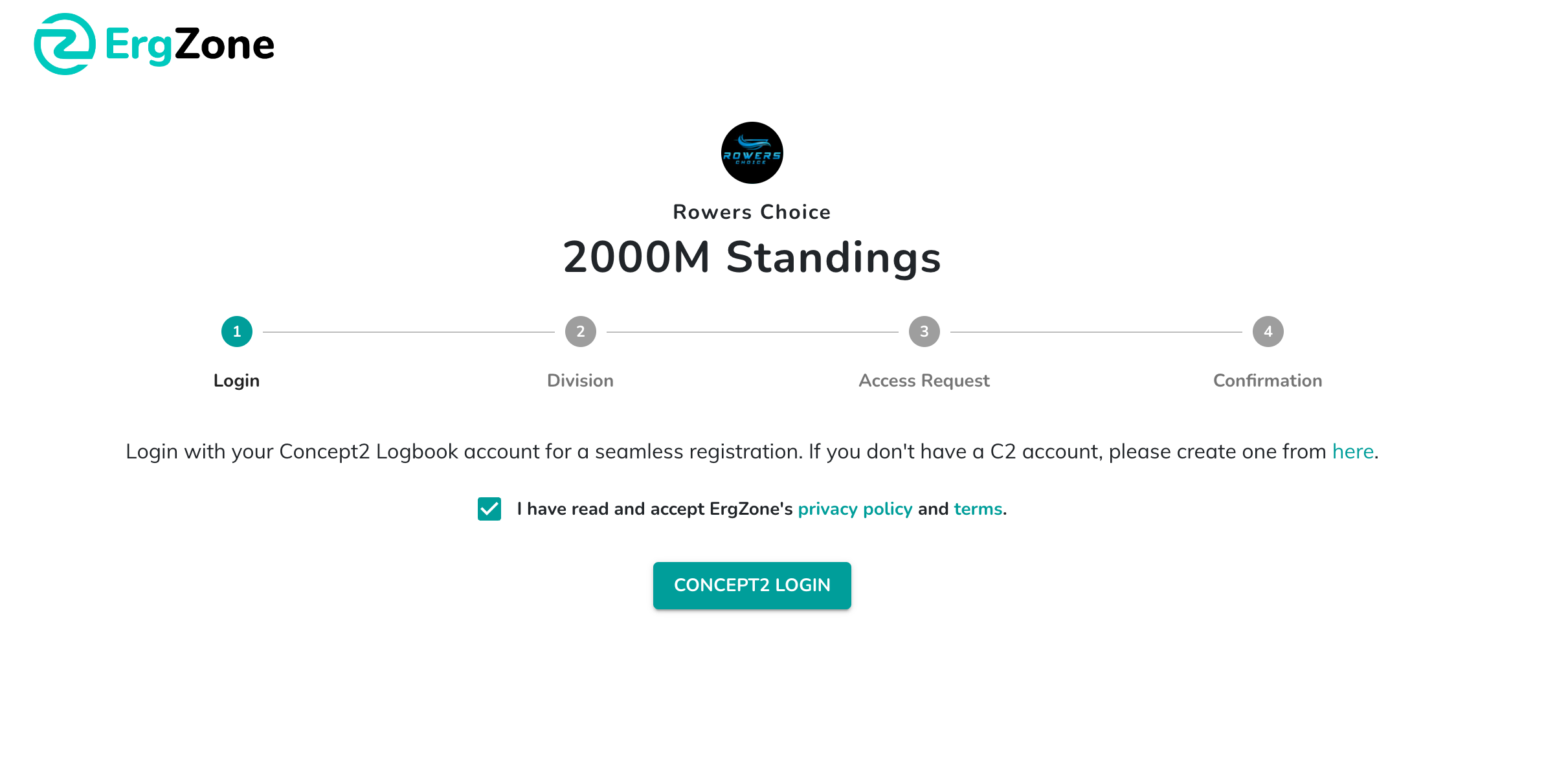
- Click on the "Concept2 Login" button and sign in
- Select your category
- Provide the required information and click "Save."
-
Click on the "Join" button.
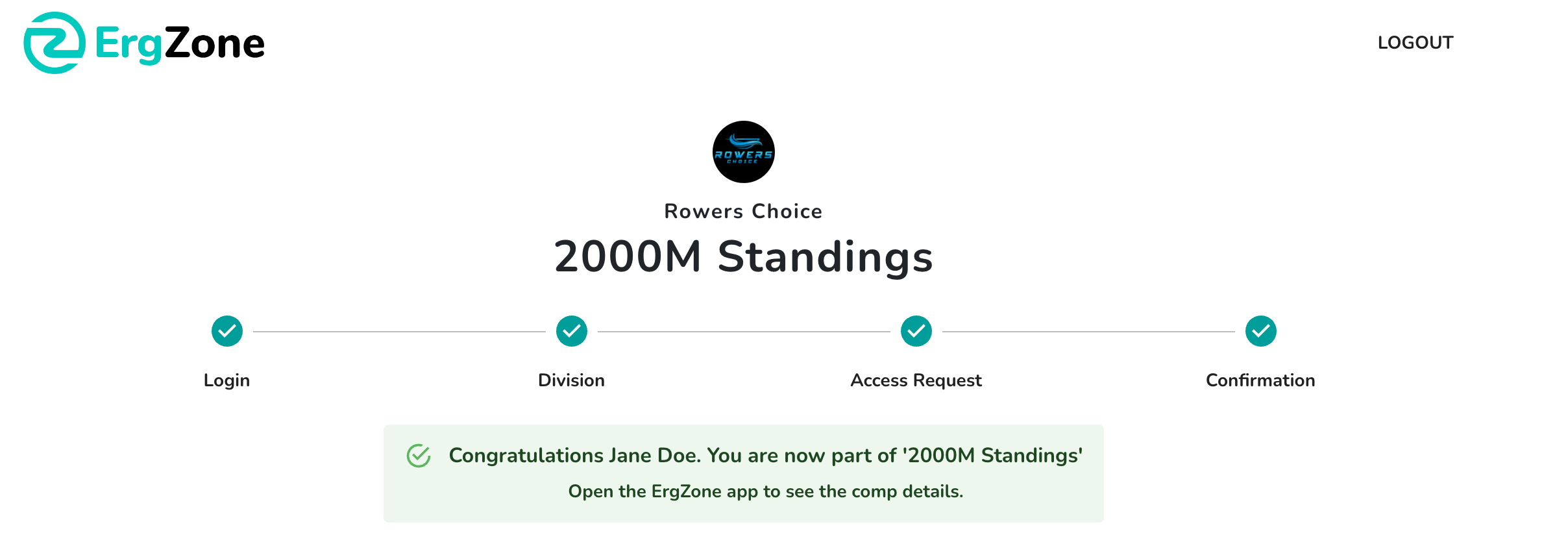
Row a 2K
You can use the ErgZone app to set up your next 2k, collect the data, and automatically post it to the Leaderboard.
- Open the ErgZone app.
- Click in the 2000m Standings.
- Enable Bluetooth on the PM5
- Click Connect and follow the instructions.
To learn how to connect ErgZone to the PM5, visit the How to Connect to the PM5 article.
If you have questions about how to use the app, contact us at support@erg.zone.
Submit a 2K Time
- Open the ErgZone app
-
Click on the 2000m Standings on the list
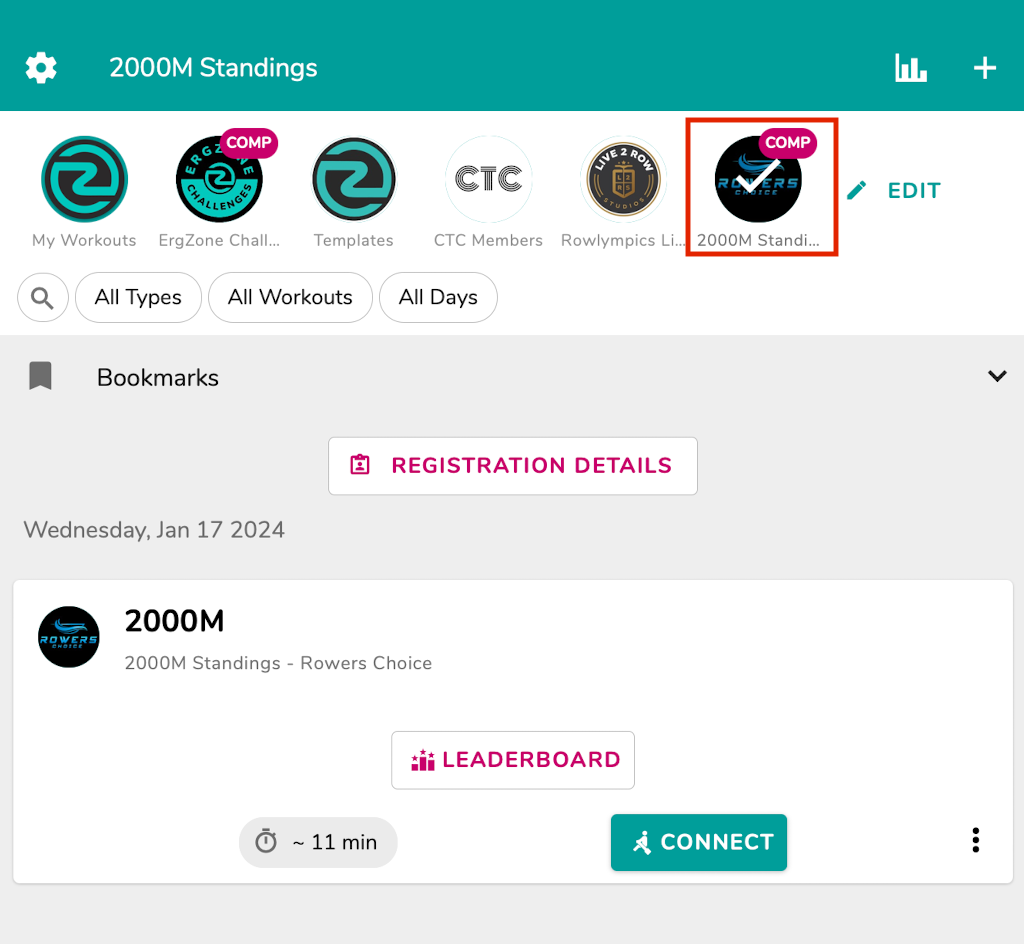
-
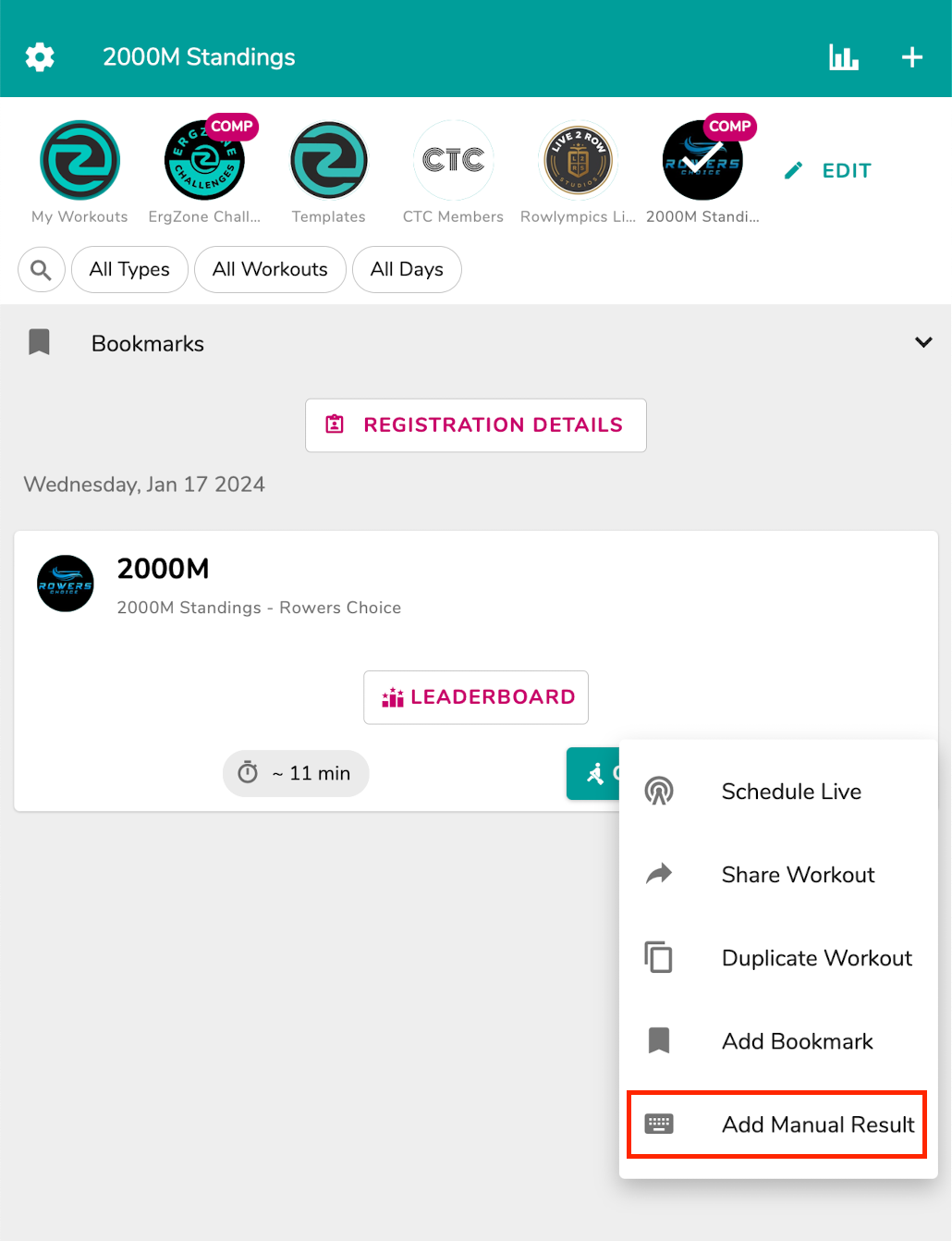
On the 2000m workout, click on the 3 dots.
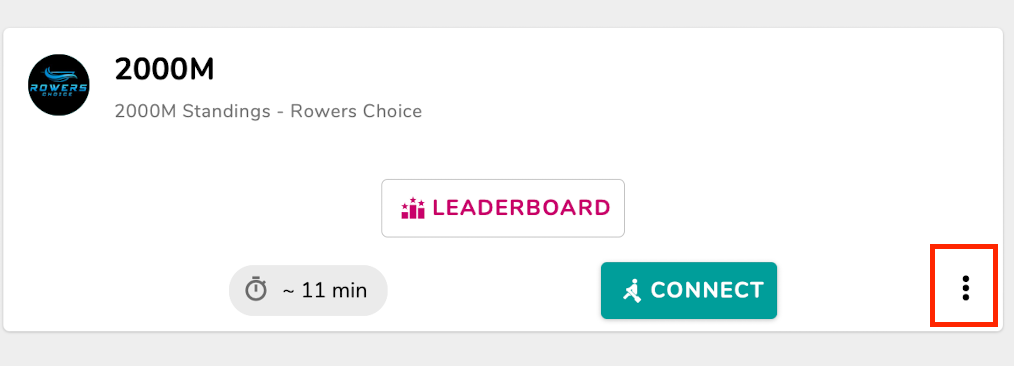
-
Select the "Add Manual Result" option.
-
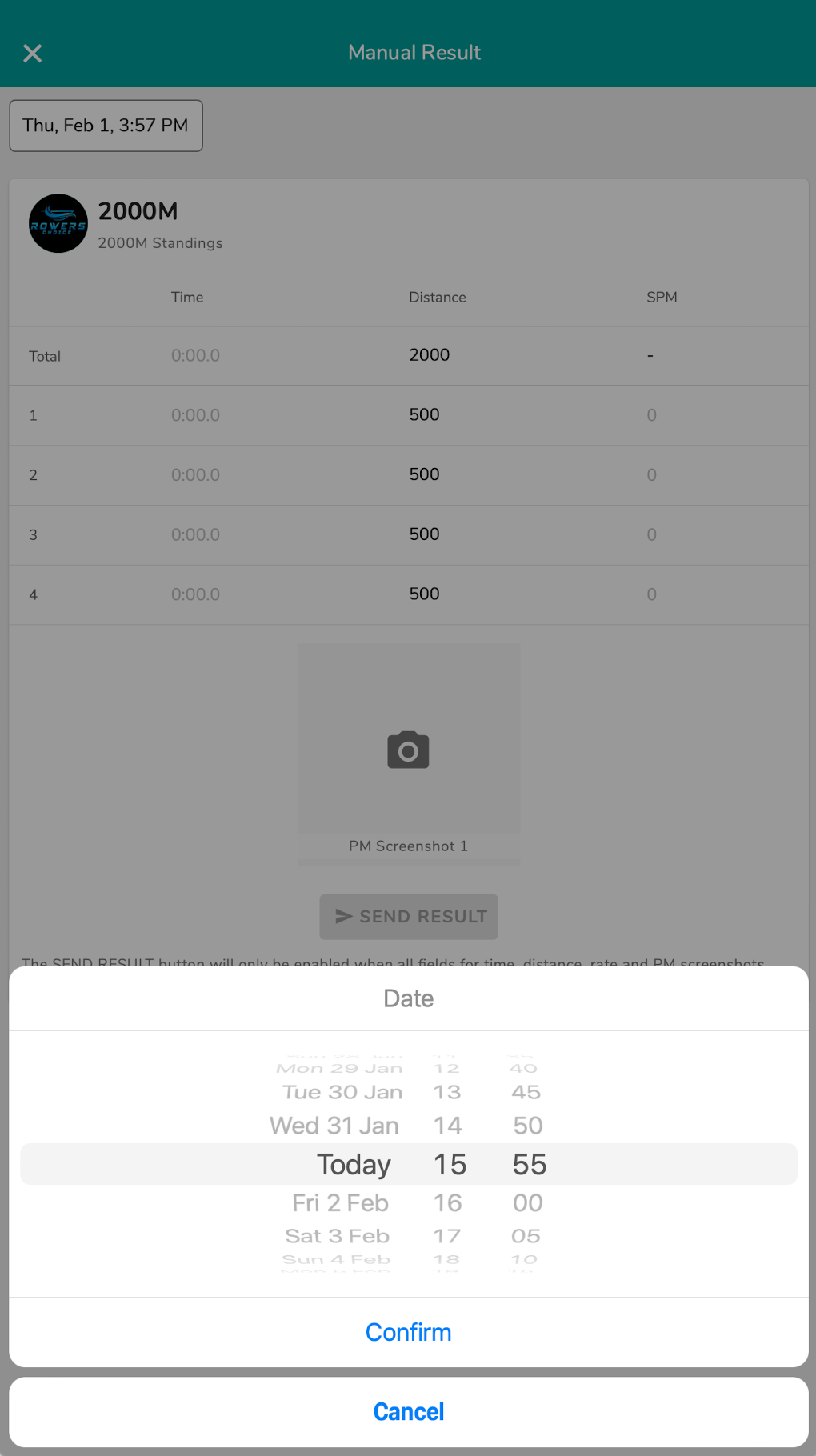
Click on the date and select the date when you performed the 2k
-
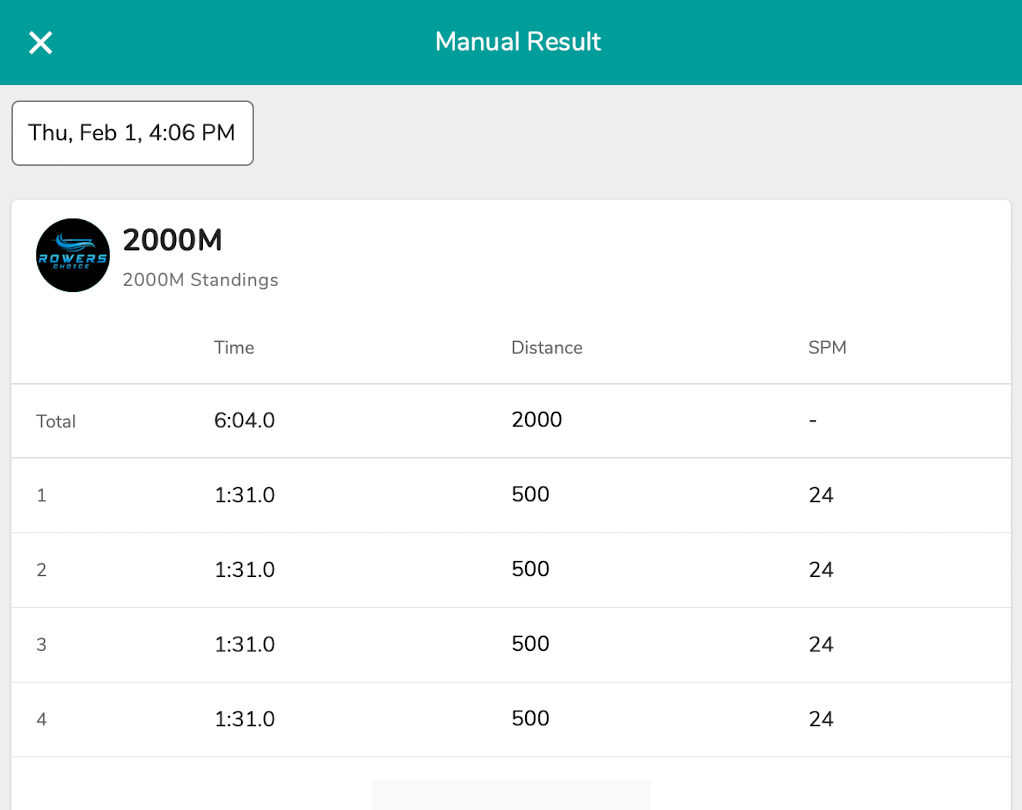
Provide the total time, split time, and rate.
Note that the workout is broken down into 500m splits, which is the default split size on the Concept2 machines.
If your workout wasn't broken down like that, report your total time and set the splits with your /500m average and rate, as demonstrated in the example below.
- Upload the proof of that time.
- Click on the "Send Result" button.
Once approved, your time will be displayed at the Learboard.