
Integrations: MCP - Connect ErgZone to an AI assistant
ErgZone can connect to the AI app you already use, so you can ask it about your training and have it create workouts for you. The connection uses MCP (Model Context Protocol). The assistant only sees your ErgZone account after you sign in and approve the connection.
This integration is currently in open beta. Please fill out this form to let us know more about your setup https://forms.gle/7a2xpXnfo3A5qnvr5
What you need
The connection is part of ErgZone+.
If you already have an active ErgZone+ subscription, you can connect right away.
If you do not, start a 7-day free trial in the app:
- Open Settings.
- Tap Unlock.
- Select the monthly plan.
When the 7 days end, the monthly plan is charged right away. If you cancel before the trial ends, you keep access for the days that are left. If you need more time to try it, contact us and we can extend the trial.
Connect ErgZone
Every app/assistant asks for the same server address:
https://production.erg.zone/mcp
During setup, ErgZone will ask you to sign in and approve access. Approve the request only if you started the connection yourself and you recognize the app.
Follow the guide for the app you use.
ChatGPT
Follow Connecting custom MCP servers in ChatGPT.
When you create the plugin app, choose OAuth for authentication.
Claude
Follow Get started with custom connectors using remote MCP.
Gemini
Follow Connect a custom MCP server.
Grok
Follow Custom MCP connectors.
Cursor and other editors
Each app is a little different. You will need the server URL above and the transport type. In Cursor, add this to your MCP settings:
{"ergzone": { "url": "https://production.erg.zone/mcp", "transport": "streamable-http"}}
What you can ask it to do
Once you are connected, talk to it the way you would talk to a coach who can see your ErgZone account.
Review a session
- Your recent results, including each interval’s pace, power, heart rate, cadence, calories, and rest
- A single session in detail, down to every second, when your monitor recorded it: heart rate, cadence, power, pace, stroke count, drive and recovery, force, and drag factor
- The force curve for each stroke, when your monitor recorded one
- Scores from Fit workouts and competitions
Look across your training
- Distance, time, calories, and days trained
- Time in each heart-rate zone
- Average cadence by machine
- How your meters break down over days, weeks, months, or years, and by machine
- A window you choose: the last hour, day, week, month, or year, a specific year, your lifetime, or any start and end date
- This period next to the one before it — this month against last month, or this year against last year
- Row, ski, bike, fan bike, run, MultiErg, and Fit
Build and manage workouts
The assistant can create a workout, change one you already have, copy one, or delete one. New workouts are published to your calendar, or saved as a draft if you ask. Each one includes a link that opens it in the ErgZone app.
It can build:
- One machine — row, ski, bike, run, or fan bike
- MultiErg — a workout that switches machines between intervals
- Fit — a free-form session scored by time, reps, rounds, points, weight, meters, calories, or a simple “mark complete”
On an interval workout it can set:
- Pieces by distance, time, or calories
- Rest you choose, or rest the athlete chooses
- A target rate (strokes or revolutions per minute), including a range such as 22–26
- A target pace: a fixed split, a pace off one of your benchmarks (your 2k, FTP, and others), or a pace off an earlier interval — for example, start at 2k + 10 and drop 2 seconds on each piece
- Notes for the work and for the rest
- Labels such as intensity, equipment, or movement
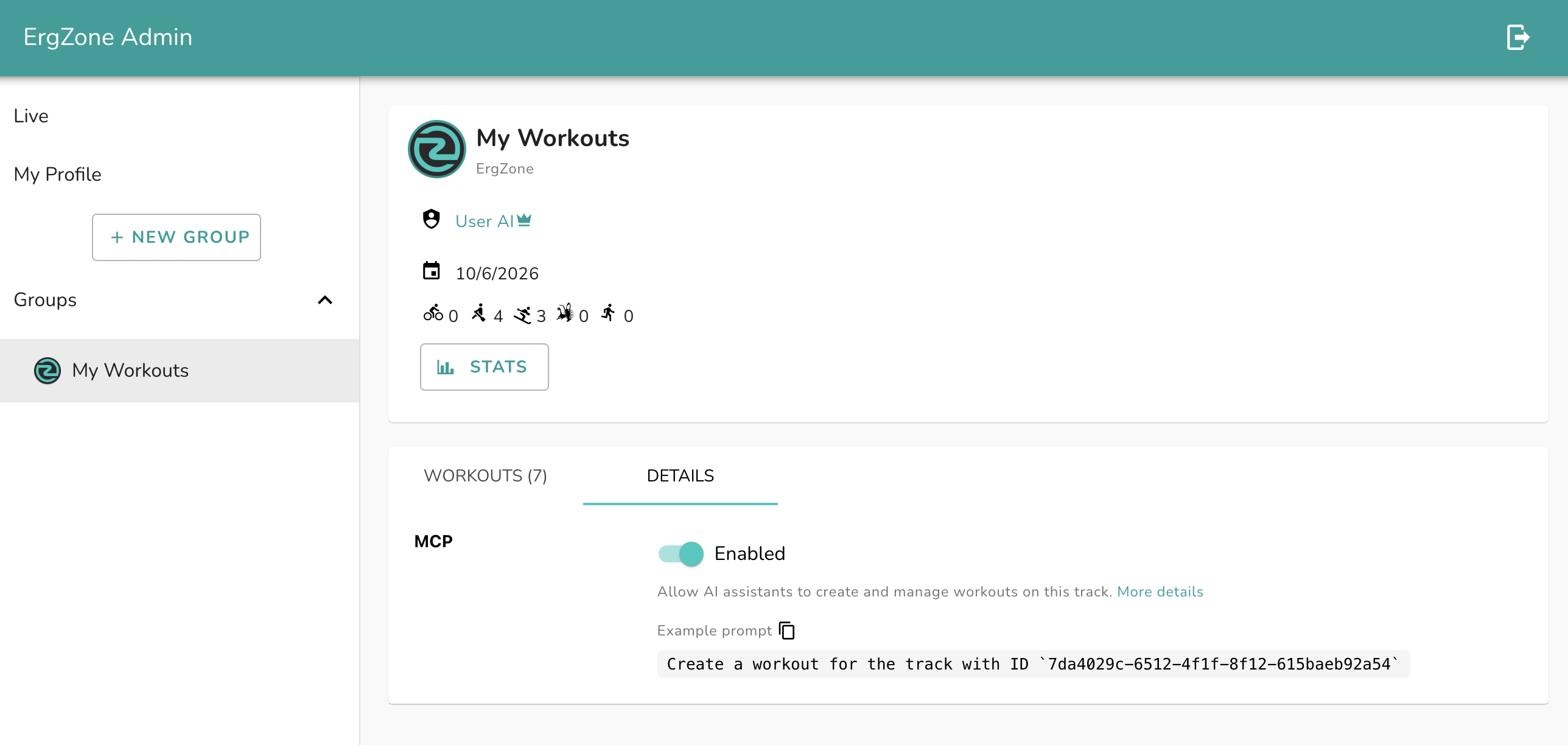
By default, it can manage workouts on your My Workouts track. Your results and stats are available either way. On the the admin site you can control if you want a track to be available in the MCP or not. This is a great way for coaches to have full control of what's available.
Prompts to try
Review a session
- Analyze my last workout. Break down pace, power, and heart rate on each interval.
- Pull the second-by-second data from my last 2k and tell me where I faded.
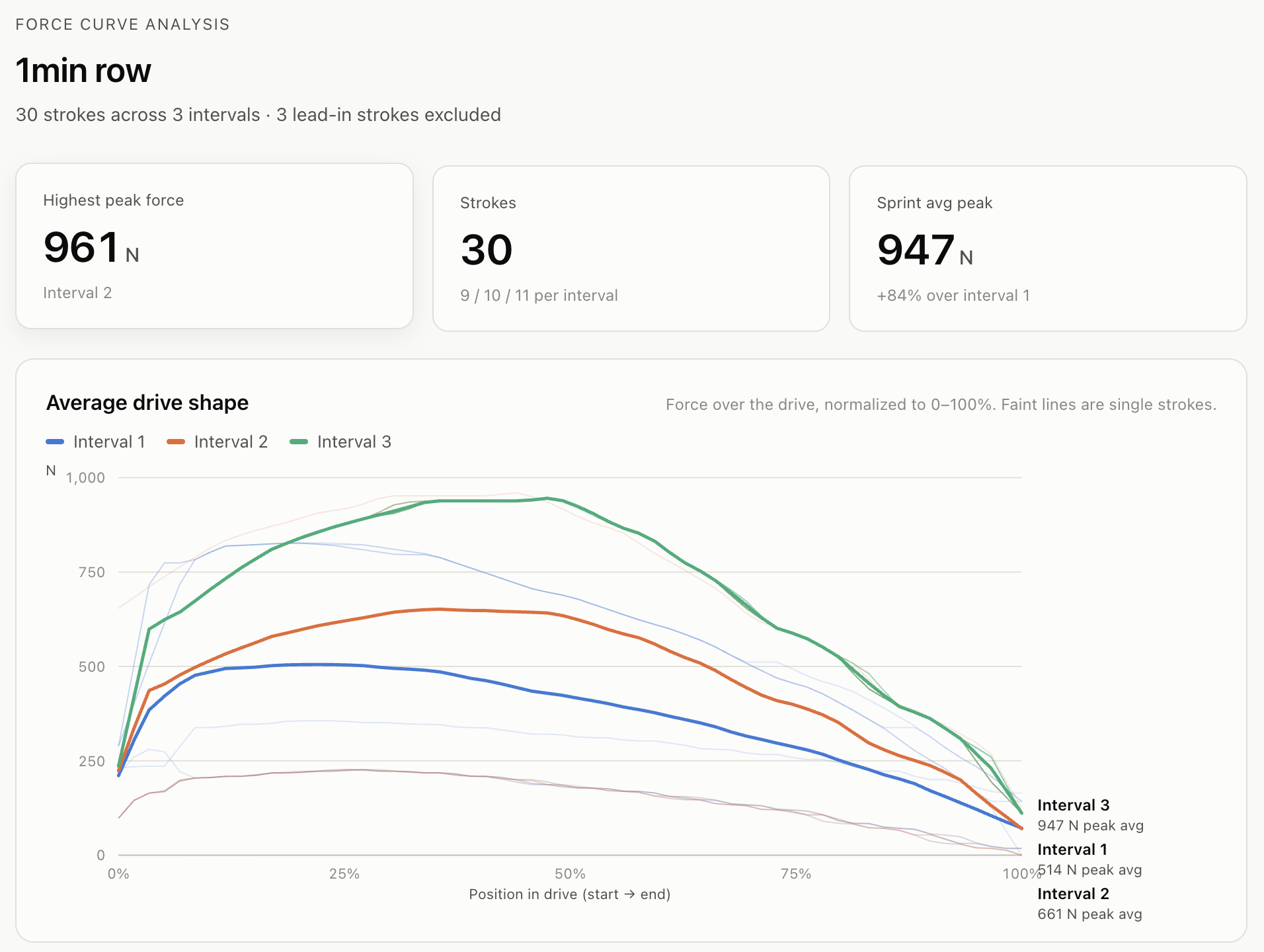
- Show the force curve analysis
Look across your training
- Compare this month’s meters with last month, split by machine.
- How many days did I train this year, and how much time did I spend in each heart-rate zone?
- Compare this year’s stats with last year.
Build and manage workouts
- Create a 30 min row, broken into 5 min intervals. Start at 2k + 10 and drop 2 seconds on each interval.
- Build a MultiErg: 500m row, 1 min ski, 500m row, 1 min bike, with 1 minute rest between pieces.
- Add a 20 minute Fit workout scored by reps, and save it as a draft.
- Duplicate last Tuesday’s workout and publish it for tomorrow.
Decide what to do next
- Based on my last 5 completed sessions, what should I do next?
Here's an example using Cursor that generated force curve analysis
Need a hand?
Contact us if the connection fails.