
Workouts Screen (Listing)
Understanding the Workouts Screen
The Workouts Screen is the central hub of ErgZone. It is the very first screen you see after signing in or entering the app as a guest, giving you immediate access to your scheduled training, tracks, and community challenges.
How Workouts Are Displayed
By default, the screen displays a feed of available workouts organized by a precise, dual-sorting system to keep your dashboard clean and predictable:
- Date Order (Reverse Chronological): Workouts are grouped by their publication or scheduled date. The newest date always appears at the very top of your feed.
- Name Order (Alphanumeric): If multiple workouts share the exact same date (for example, when a group releases several machine variations for a monthly challenge on the 1st of the month), ErgZone automatically sorts them alphanumerically by their title from A to Z.
- Group View: If you select a specific group or track from your list at the top of the app, the feed will filter to show only workouts belonging to that group (e.g., "ErgZone Monthly Challenges").
- All-Access View: If no specific group is selected, the app aggregates and displays workouts from all the groups and tracks you currently have access to.

Filtering and Sorting Your Feed
To help you quickly find the exact session you want to tackle, ErgZone provides multiple filter buttons located right below the search bar. This includes standard fixed options as well as dynamic filters that update automatically based on the workouts currently visible in your feed.
1. Types (Fixed Filter)
Filter your feed by specific erg or exercise modalities. Tapping this option allows you to isolate workouts designed for:
- Row (Indoor Rower)
- Ski (SkiErg)
- Bike (BikeErg)
- Fan Bike
- Run
- Fit (Strength/Bodyweight)
- MultiErg (Mixed-erg sessions)

2. Workout Status & Events (Fixed Filter)
Manage your feed based on whether or not you have attempted a workout, or view live events:
- Most Recent: The default view showing the latest published workouts.
- Alphabetical: Displays workouts in alphabetical order by title.
- Recently Completed: Workouts you have already done or attempted (even if you didn't finish the entire session).
- Not Completed: Active or past workouts you haven't performed yet.
- Live Now: Ongoing live group sessions or challenges happening in real time.
- Live Scheduled: Upcoming live events that you can plan for.

3. Dynamic Labels (Smart Filter)
ErgZone automatically scans the workouts currently on your list and generates dynamic filters based on the specific labels assigned to them by their creators. If the workouts in your view contain specific tags, the app will instantly add them as filter categories. These can include:
- Movement: Filter by specific exercises or movement patterns.
- Equipment: Isolate specific gear requirements.
- Event: Group sessions belonging to a particular challenge or competitive event.
- Intensity: Sort by effort levels (e.g., Recovery, HIIT, Steady State).
- Other / Generic Labels: Any custom tags created to organize that group's programming.
4. Date View (Workouts Feed vs. By Week)
Control how time and dates are structured on your dashboard:
-
Workouts Feed: The standard layout that lists all workouts continuously based on publication or target date, moving backwards in time as you scroll down.
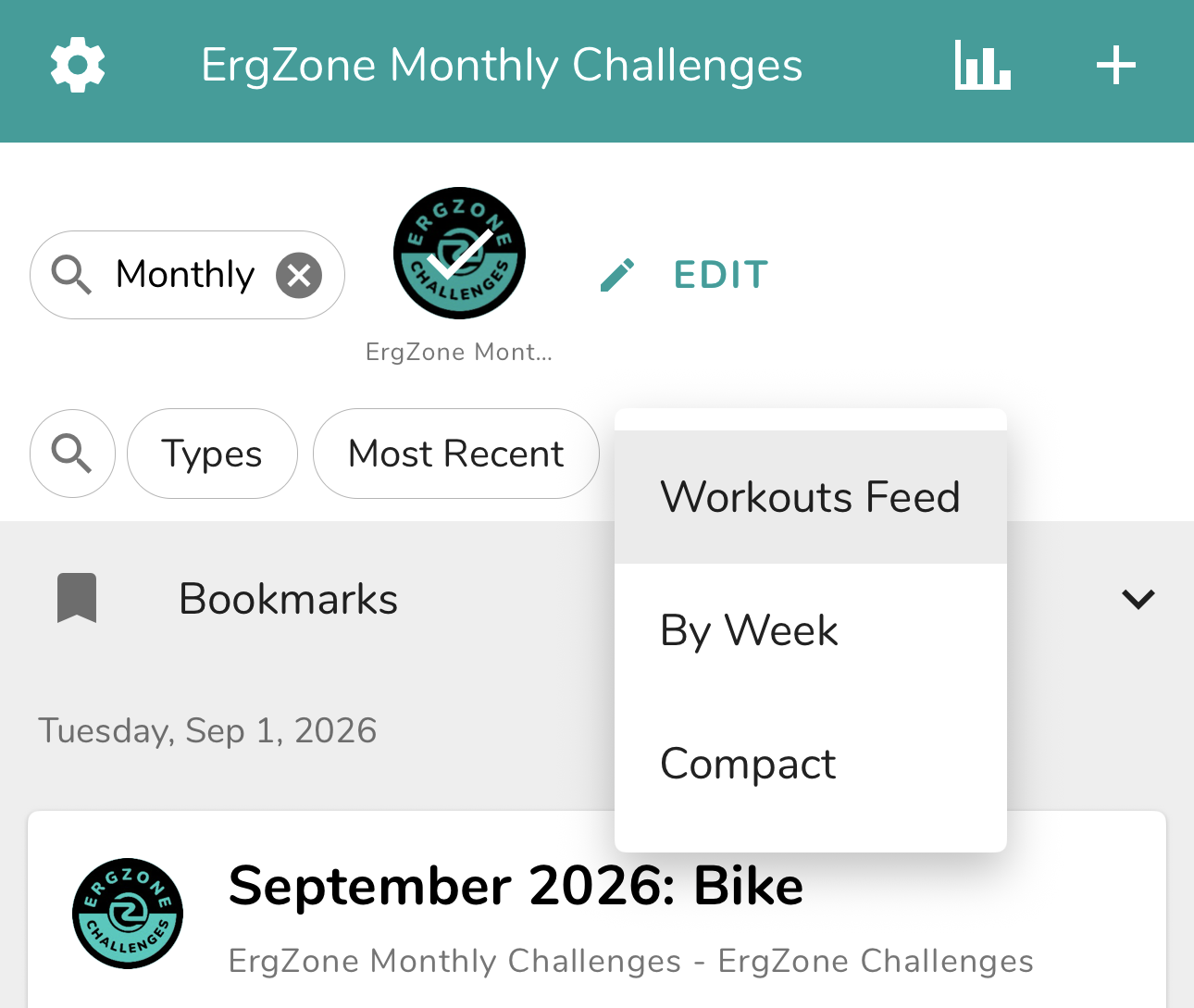
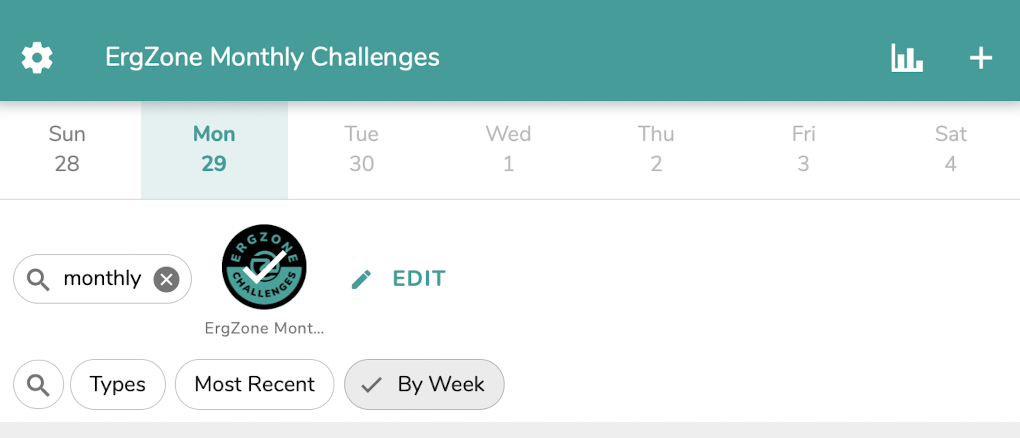
-
By Week: Transforms the top of your dashboard into an interactive calendar bar (showing days of the week, e.g., Sun through Sat). Selecting By Week arranges your training from the current date forward, letting you easily map out your weekly training routie.
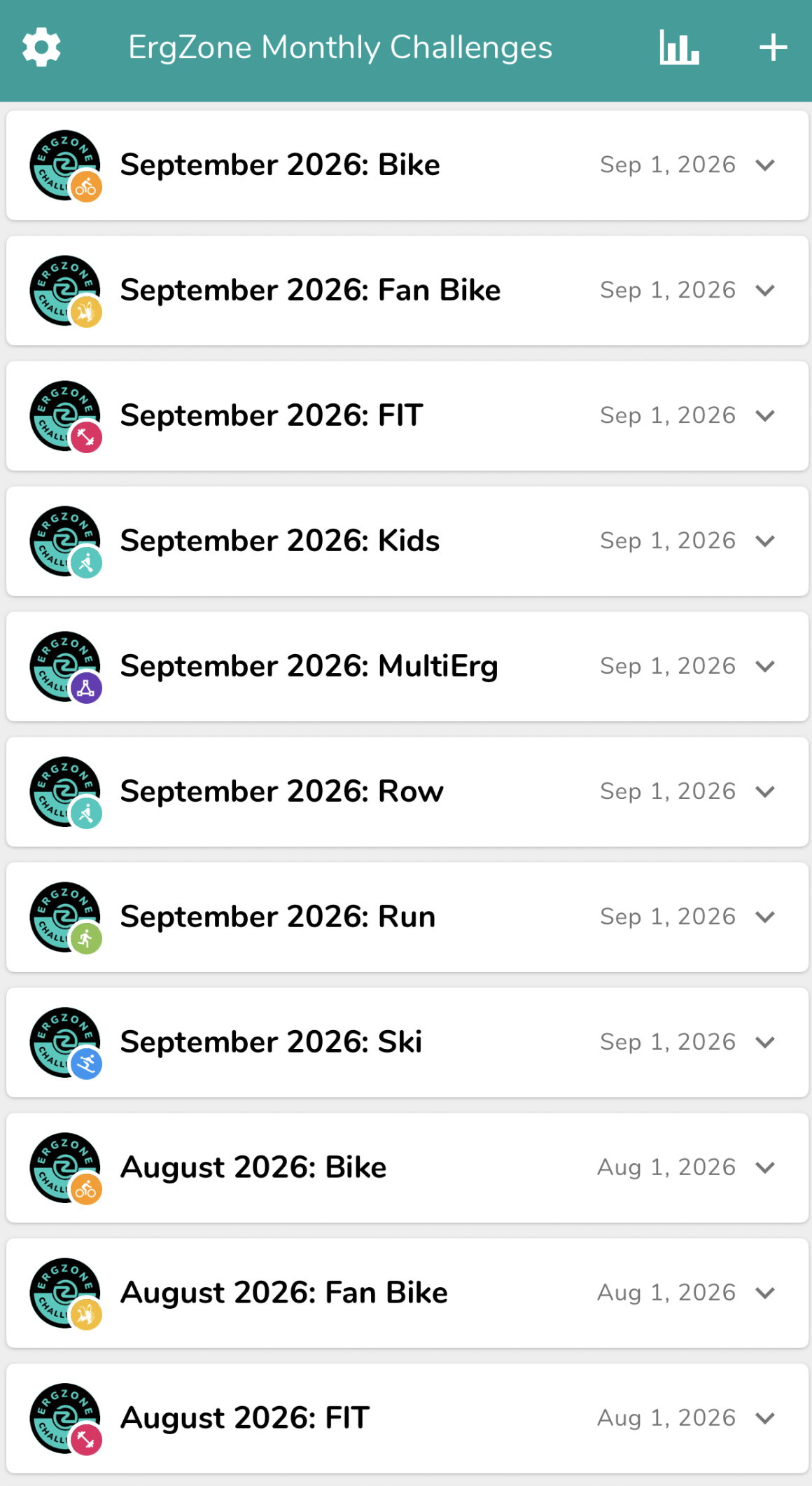
-
Compact: Displays only the workout titles without the full summary card or short description, allowing more workouts to fit on the screen at once.
Inside a Workout Card
Each workout listed in the feed provides a quick snapshot of what to expect before you jump in:
-
Workout Type Badge: A colorful badge (e.g., Bike, Ski, or Row) displays the primary erg chosen by the creator when the workout was built.
Note: You can actually perform any workout on any type of erg you prefer. However, this badge is crucial for personalized pacing. When a workout includes target paces or watts based on percentages (e.g., an interval set at a "5k + 10" pace), ErgZone uses the designated erg type to look up your personal benchmark for that specific machine and calculate your targets. For example, if a workout is designated as a Ski workout, ErgZone will reference your SkiErg 5k benchmark to calculate your exact target pace.
- Description: High-level details about the workout's format and goal (e.g., "30-minute Score: Overall distance").
- Community Stats: Quick links to see how many Results have been logged by other athletes, along with a direct link to the global Leaderboard.
- Connect: Tap the prominent teal Connect button to immediately pair with your erg via Bluetooth and load the workout intervals automatically.